Every Forensic OSINT capture is exported as a PDF that is digitally signed at the moment it is created. That signature lets anyone confirm, at any time, that the document is byte-for-byte identical to what was captured, with no later alterations.
When you first open a signed capture in Adobe Reader or Acrobat, you may see a message that the signature validity is unknown, or that "at least one signature has problems." This guide explains what that message really means, and walks you through validating the signature so Adobe displays a green check instead.
What Actually Matters for Evidentiary Integrity
The important line is the one Adobe shows first:
"The document has not been modified since this signature was applied." This is the part that matters for evidentiary integrity. It is Adobe cryptographically confirming the PDF is unchanged, byte-for-byte, since the moment it was signed. That is the tamper-evidence, and it is intact.
Adobe validates two independent things: whether the document was altered (integrity), and whether it recognizes the signer (identity, or trust). These are separate checks. When the line above appears, the integrity check has passed. A trust warning does not change that, and it does not affect the validity of the signature.
Why Adobe Shows a "Validity Unknown" Warning
The "Signature validity is UNKNOWN" warning is the identity check, not the integrity check. It is a trust-configuration message, not a sign that anything is wrong with the file.
Adobe automatically trusts a signature only when its certificate chains up to a root on the Adobe Approved Trust List (AATL), plus any certificates you have added yourself. Anything else shows as "unknown" until you explicitly trust it. Out of the box, that is every signer Adobe has not been told to trust, so this warning is expected and looks the same on every default Adobe install.
In short: "Not modified" is about the evidence. "Validity unknown" is about your local Adobe settings. The steps below show how to trust the Forensic OSINT root certificate, ForensicNotesRootCA, so the warning is replaced with a green validation check.
Every Forensic OSINT report chains to the same root certificate, ForensicNotesRootCA, issued by TwiceSafe Software Solutions. Trusting that root once lets Adobe validate every Forensic OSINT report. The Windows installer, the Adobe manual import steps, and the fingerprint check are on Verifying Forensic OSINT Digital Signatures.
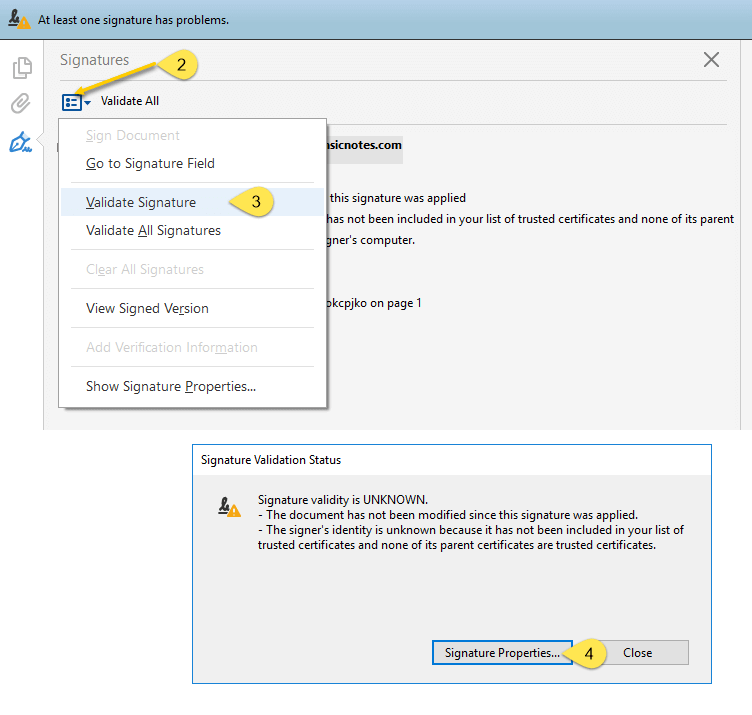
Open the Signature Panel
- Open your capture PDF in Adobe Reader or Acrobat.
- Open the Signature Panel (the notification bar at the top usually has a link, or use View → Show/Hide → Navigation Panes → Signatures).
- Click the dropdown menu next to Validate All and select Validate Signature.
- Click the Signature Properties... button.
Review the Signature Properties
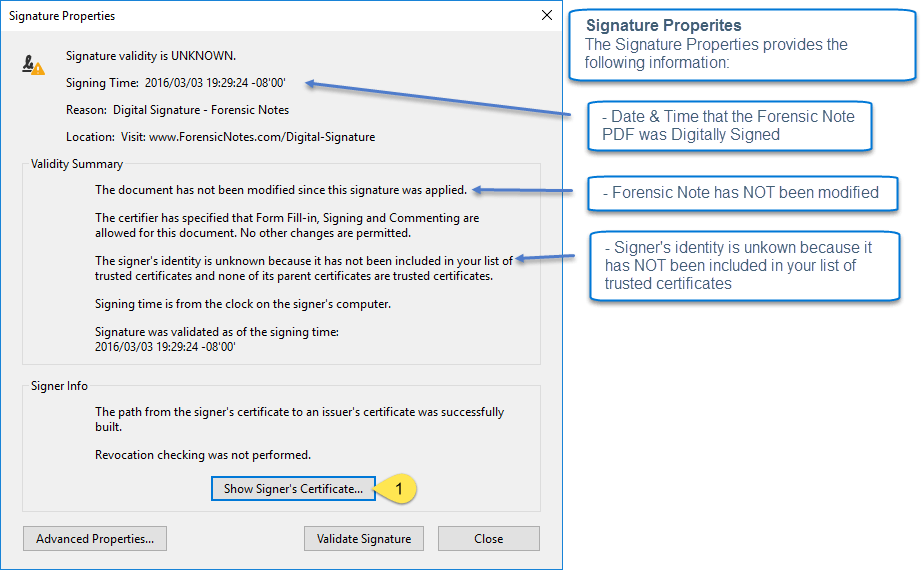
The Signature Properties window shows the details of the digital signature. This is where you will see the confirmation that the document has not been modified since it was signed.
- Read the summary at the top. Look for the line confirming the document has not been modified since the signature was applied.
- Click Show Signer's Certificate... to inspect the certificate.
View the Certificate
- The Certificate Viewer opens and displays the signer's certificate details on the Summary tab.
- The certificate chain is shown on the left. It ends at ForensicNotesRootCA, through the ForensicNotesClientBasic intermediate.
Trust Our Root Certificate
Trust the root certificate at the top of the chain, ForensicNotesRootCA, rather than the signer's certificate shown on the Summary tab. Each Forensic OSINT account signs with its own certificate, so the root is the one certificate that covers every report. You only need to do this once per computer.
- Close the Certificate Viewer.
- Follow section 3, "Trusting our root certificate", on Verifying Forensic OSINT Digital Signatures. It explains how to check the root's fingerprint, then install it with the Windows installer or by manual import into Adobe (Windows or macOS).
Re-Validate the Signature
- Close and reopen the report in Adobe.
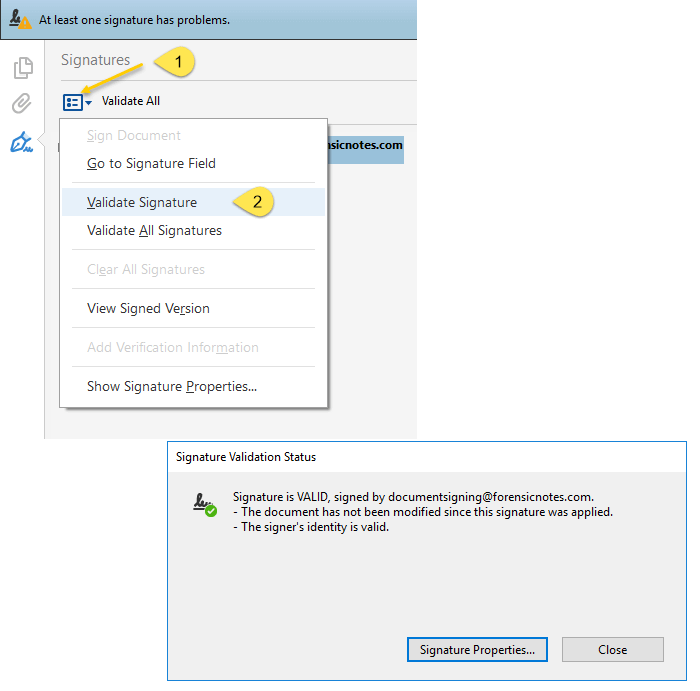
- In the Signature Panel, click the menu icon again and select Validate Signature.
Confirm the Signature Is Valid
Adobe now shows a green check and the message "Signed and all signatures are valid." The signer's identity is displayed instead of the earlier warning.

Nothing about the file changed. The signature was always valid and the document was always unaltered. Once you (or your organization) tell Adobe to trust our root certificate, Adobe shows the signer's identity and a green validation check instead of the warning. Only the local trust setting changed.
A Second, Independent Proof
Independent of Adobe, Forensic OSINT also records the cryptographic hash of every capture in our system. A hash is a unique fingerprint of the file: if even a single byte changes, the hash changes.
So if signature validation is ever questioned in a proceeding, the hash gives you a second, independent way to prove the PDF has not been altered. You are never relying on Adobe's trust settings alone.
Two independent checks back every capture: the embedded digital signature verified in Adobe, and the cryptographic hash recorded at capture time. Either one confirms the document is unchanged.
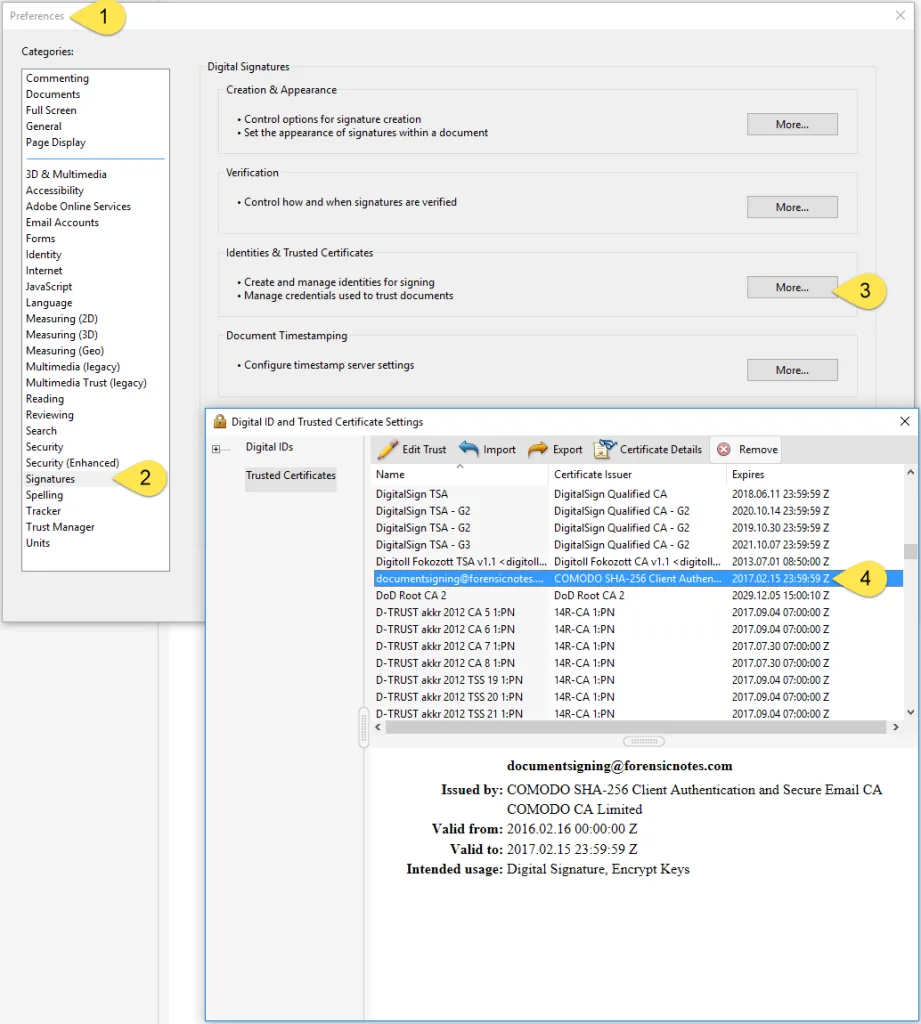
View Your Trusted Certificates
If you imported our root certificate into Adobe, you can confirm it is on your list at any time. Look for ForensicNotesRootCA. If you used the Windows installer, the command to confirm it is on Verifying Forensic OSINT Digital Signatures.
- In Adobe, go to Edit → Preferences.
- Select Signatures from the left menu.
- Under Identities & Trusted Certificates, click More... to view the certificates Adobe currently trusts.
Related: Learn more about how our captures are built to withstand legal scrutiny on our Court Admissibility page.