
How to Guide: Download Video & Create Evidence Continuity Report
Forensic OSINT provides a robust way to download videos and ensure evidence continuity.
Follow the steps below to successfully download a video and generate an Evidence Continuity Report.
Supported Sites for Video Download
Our video download feature supports platforms like YouTube and Twitter X, with openness to others despite fluctuating support due to technological changes. We encourage trying downloads from various sites and reporting any difficulties to help us enhance our support for your investigative needs. This collaborative approach allows us to continuously improve and adapt our services.
Step 1: Open Forensic OSINT Chrome Extension
When viewing the video you wish to download, open the Forensic OSINT Chrome Extension.
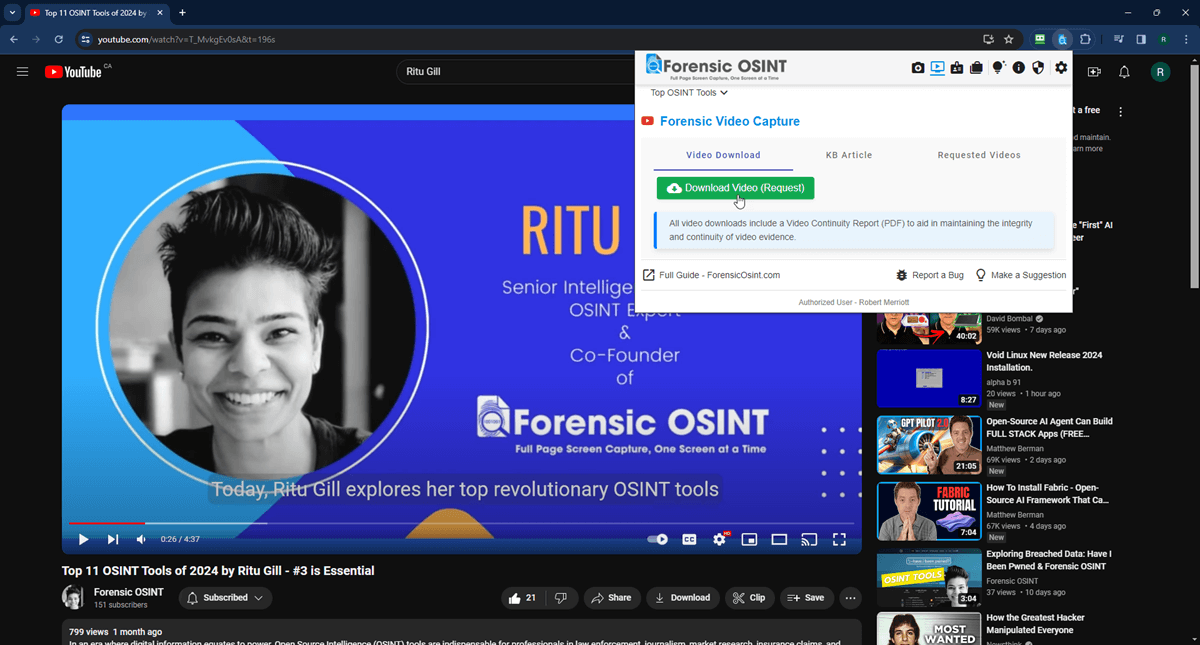
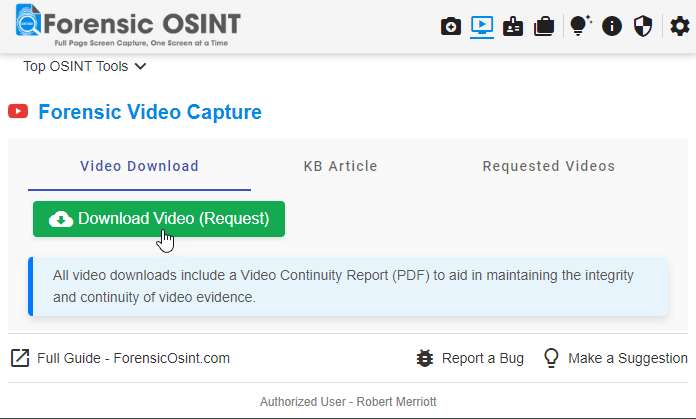
Step 2: Start the Video Download
Press "Download Video" to start downloading the video in the background.
Video Download has now started...
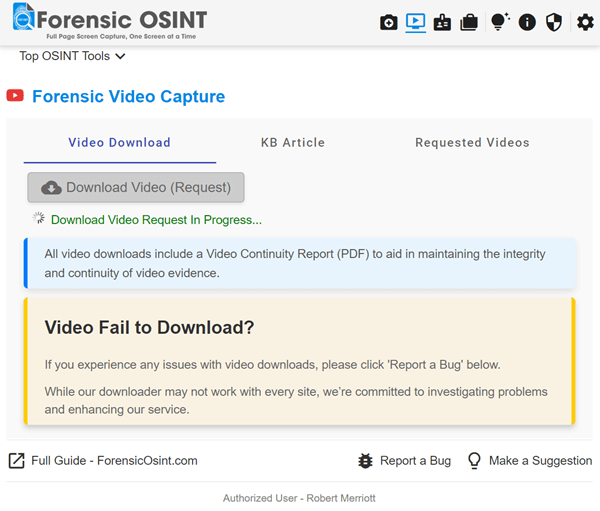
Note: The download time varies based on video size and quality, ranging from 1 to 30+ minutes.
You can monitor the download status under the "Requested Videos" tab. Remember, the list does not update dynamically; refresh the 'Requested Videos' page to see the latest status.
Step 3: Video Download Status
Once the video is ready, it may automatically download to your computer. If not, manually click the "Download" link under Requested Videos.
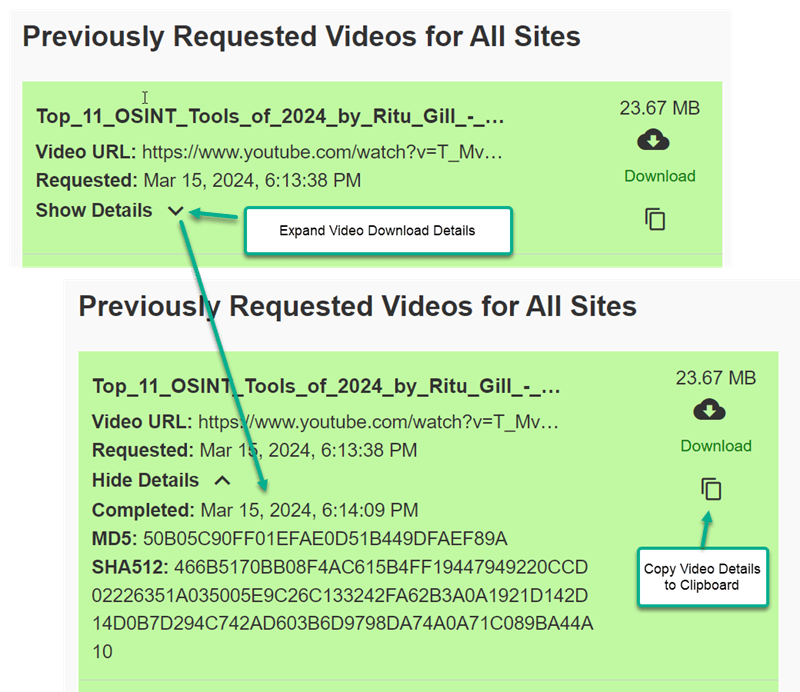
Step 4: Retrieve the Video and Report from ZIP Archive
The downloaded ZIP file will contain the highest quality video available and a PDF of your Video Evidence Continuity Report.
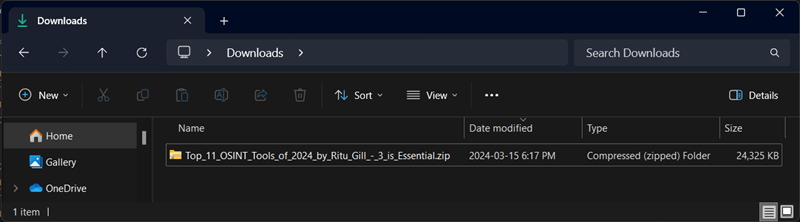
Note: Extract the files from the ZIP archive to a separate folder for easier access.
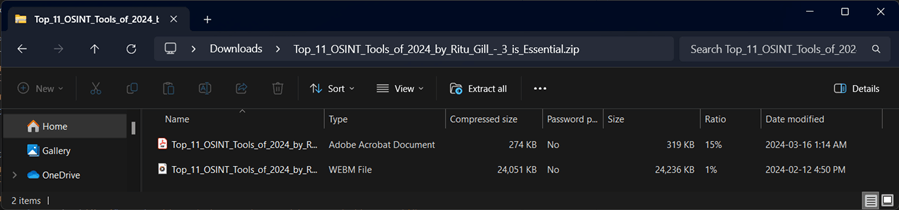
Video Playback
Depending on its original format and source, the video may be in various formats, such as .webm, which is typically for 4K videos from YouTube.
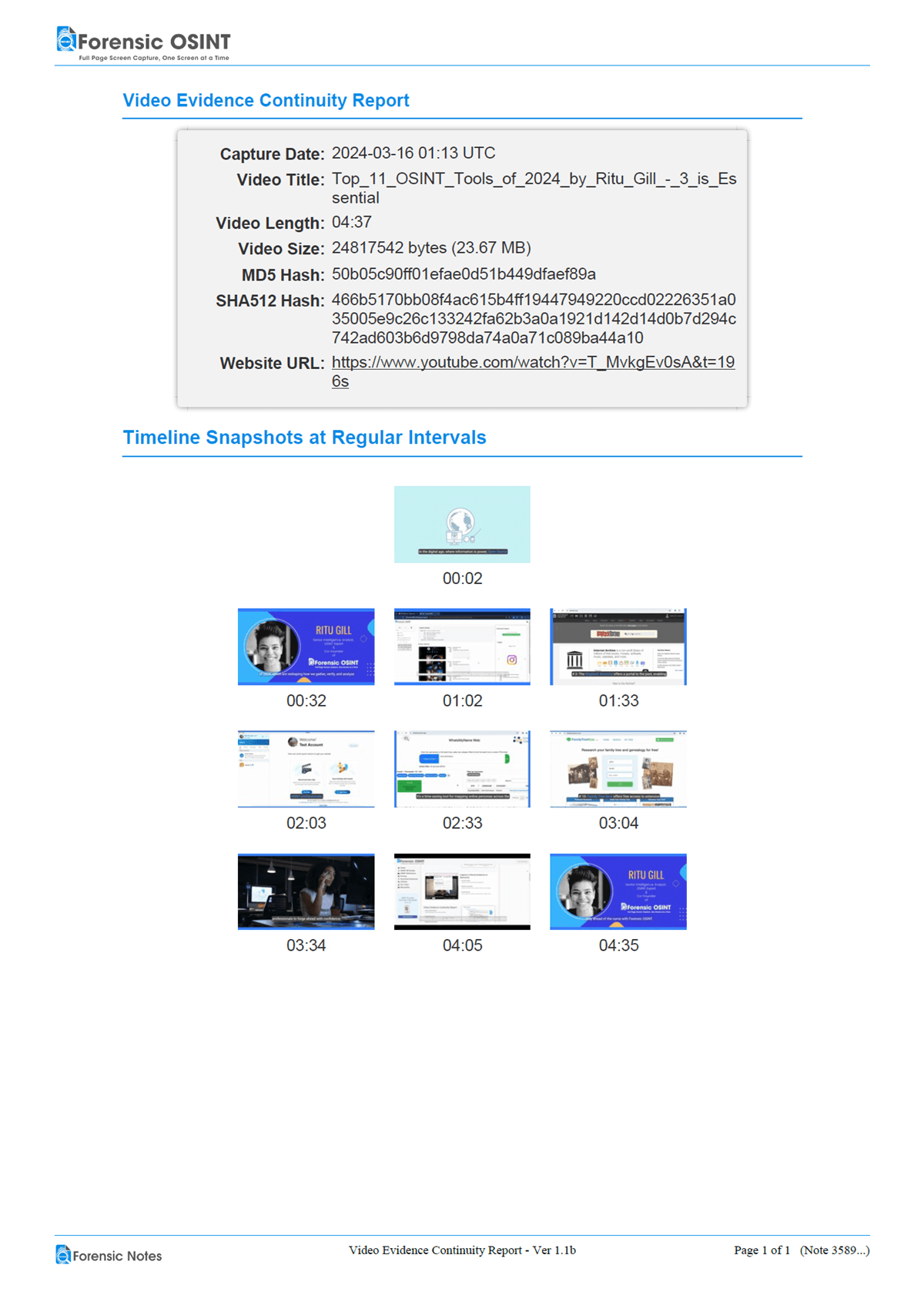
Video Evidence Continuity Report
The PDF report provides detailed information, including:
- Capture Date and Time (UTC)
- Video Title
- Video Length
- Video Size
- MD5 Hash
- SHA512 Hash
- Website URL
It also includes 10 evenly spaced clips from the video for a quick content review.
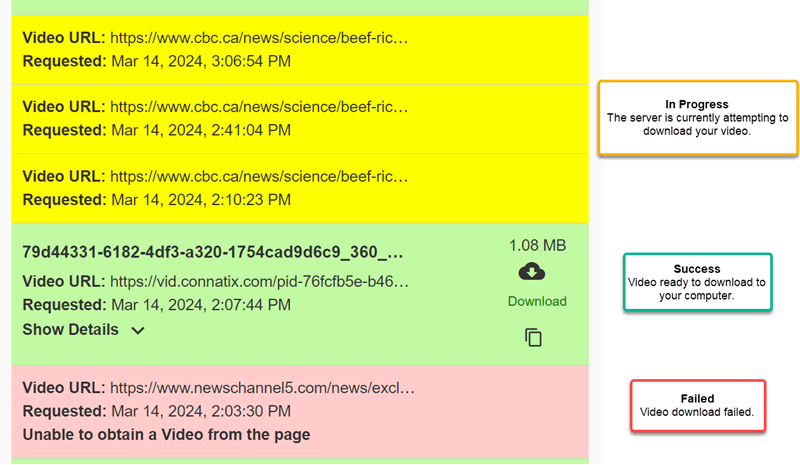
Video Download Status Indicators
Green: Video successfully obtained and ready for download.
Yellow: Download in progress. Please check back later.
Red: Download failed. Use the "Report a Bug" link for assistance.
By following these steps, you can effectively use the Forensic OSINT extension to download videos and generate an Evidence Continuity Report, ensuring the integrity and continuity of video evidence.